← Back to home

Installation guide

How to download and install Tracksee

It takes about 2 minutes. You don't need to install anything else. Everything Tracksee needs, including its database, comes in the installer.

Windows 10 or 11 (64-bit)About 600 MB free disk spaceNo internet needed after installing
1

Download the installer

Click the button below. Your browser saves the installer (for example Tracksee-Setup-0.1.0.exe) to your Downloads folder.

Download for Windows

Windows 10 / 11, 64-bit

When the download finishes, open the file (click it in your browser's downloads list, or double-click it in the Downloads folder).
2

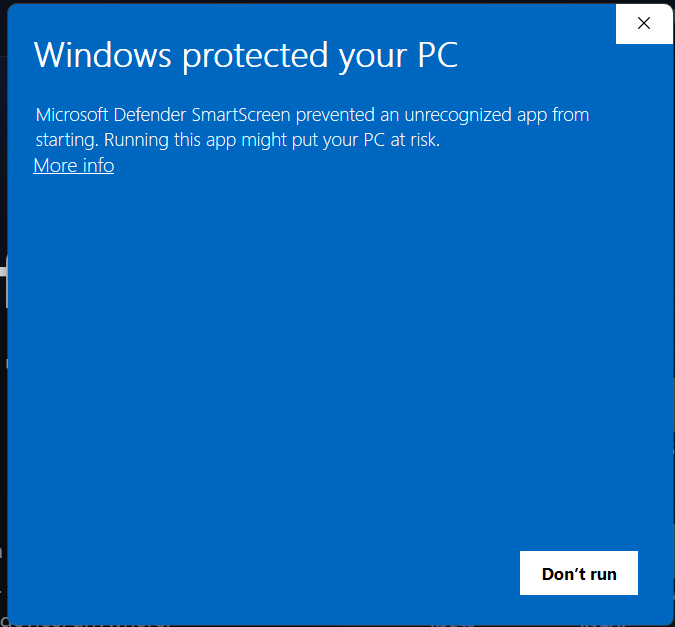
If Windows shows "Windows protected your PC", click More info

Windows shows this blue screen for new programs it hasn't seen many times yet. It doesn't mean anything is wrong with Tracksee. Click the More info link.

This is normal for new software. If you don't see this screen, skip to step 4.

Windows protected your PC screen with the More info link
3

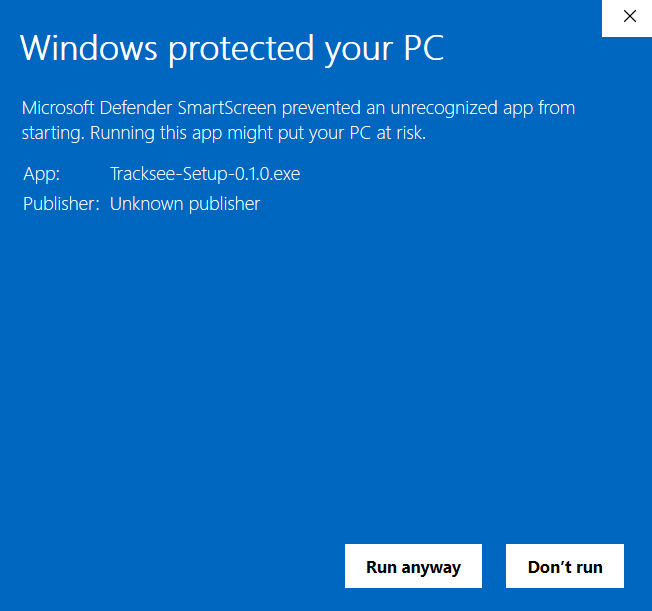
Click Run anyway

The screen now shows the app name, Tracksee-Setup. Click Run anyway to start the installer.

The same screen with the Run anyway button
4

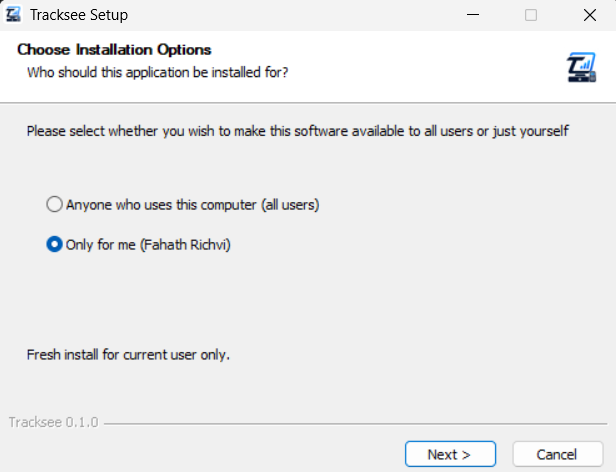
Choose who can use it, then click Next

Leave Only for me selected (recommended) and click Next. Choose Anyone who uses this computer only if several Windows users share the PC.

Tracksee Setup: Choose Installation Options
5

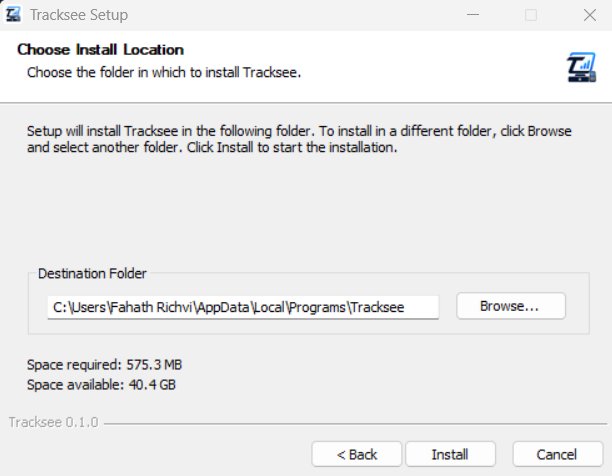
Click Install

The suggested folder is fine for almost everyone. Click Install.

Tracksee Setup: Choose Install Location
6

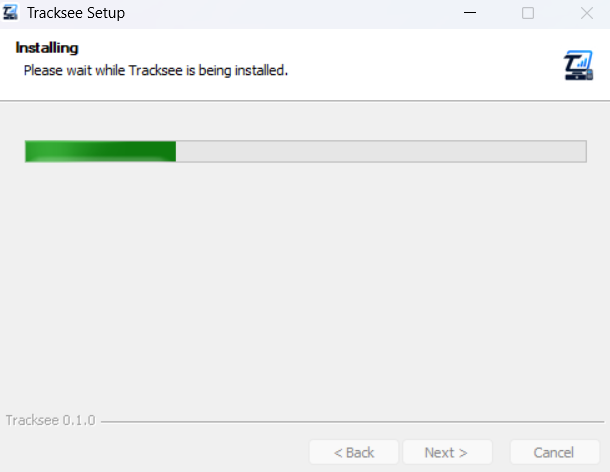
Wait a moment

Installing takes about a minute.

Tracksee Setup: Installing progress bar
7

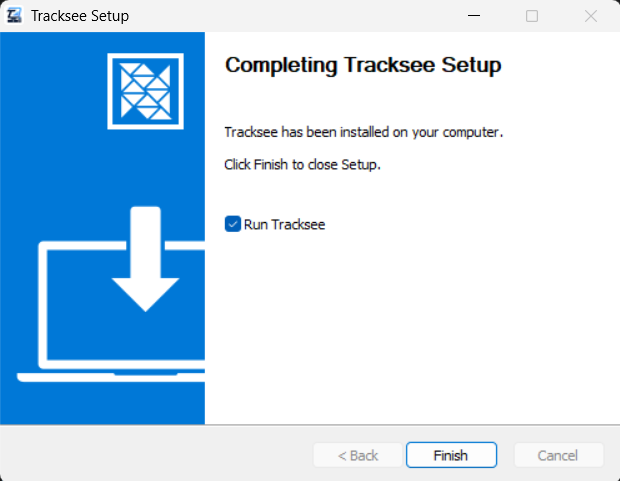
Click Finish

Keep Run Tracksee ticked and click Finish. Next time, open Tracksee from the desktop shortcut or the Start menu.

The first start takes up to a minute while Tracksee sets up its database. After that it opens in seconds.

Completing Tracksee Setup with Run Tracksee ticked
8

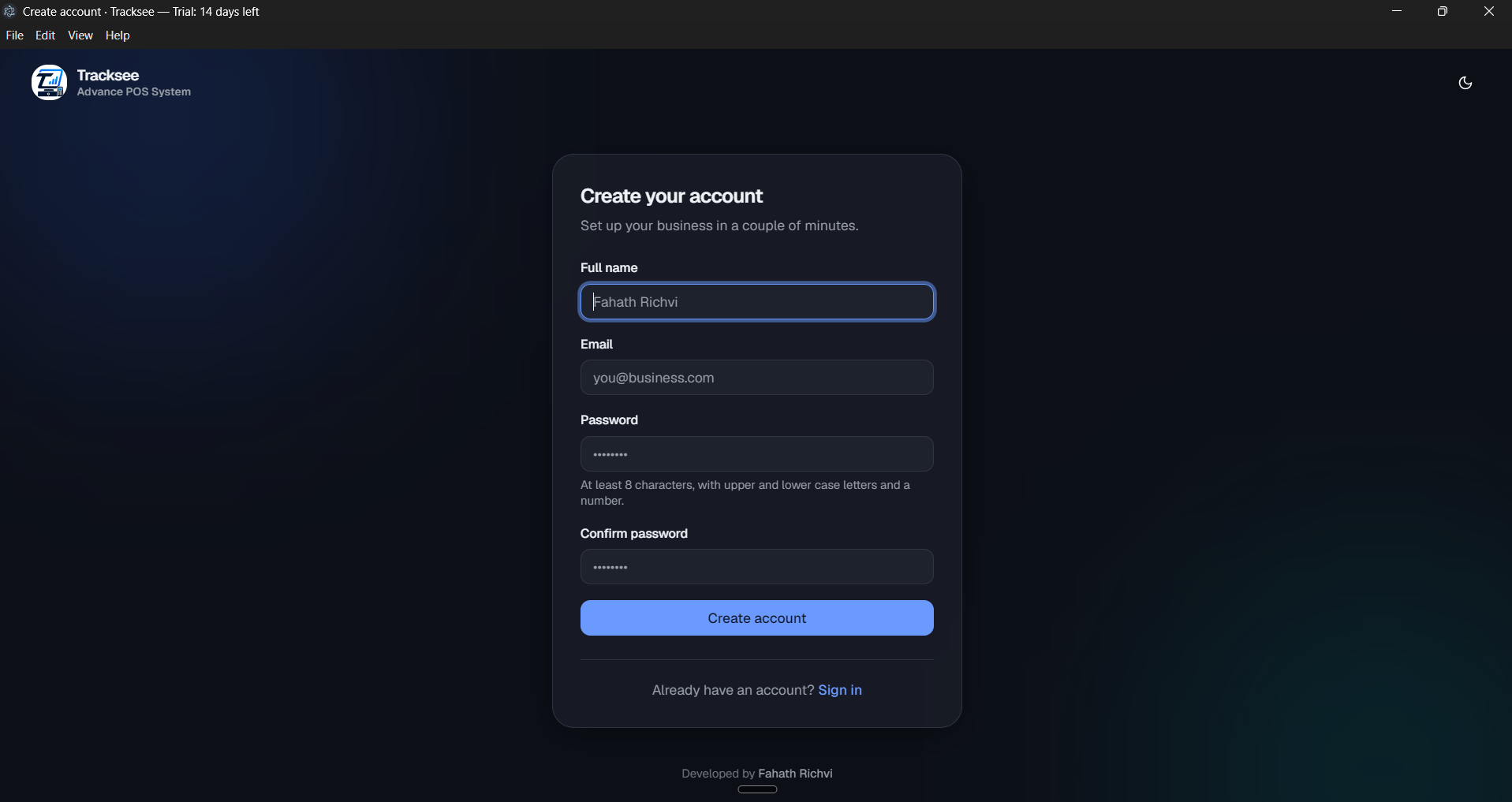
Create your account and start selling

Enter your name, email and a password to create the owner account, then set up your business. Your 14-day free trial starts now, with every feature included. The days left are shown in the title bar.

Tracksee's Create your account screen, showing Trial: 14 days left in the title bar

After the trial

Keep using Tracksee with a lifetime licence

Before or after the 14 days end, open Help → Licence & activation in Tracksee, copy your Device ID and send it to us. We'll send you a licence key to paste in. Your data is kept.

Limited-time offer · Save Rs 15,000Rs 45,000Rs 30,000

one-time payment, per computer

Buy on WhatsAppLicence details